

My artistic journey has been an enriching experience, and my thirst for knowledge has quite frankly kept me from sinking into the most atrocious boredom. Sometimes staving off even depression. The world is a colorful and visually rich environment. While one sees nothingness in a desert, creative people see the ripples in dunes, the play of light and shadow at different times of the day, the contrast of dune colors against the sky. Even the ugliest places on Earth have beauty hidden in the details. And we wouldn’t be artists if we didn’t attempt to recreate these 3D environments on 2D surfaces.
Inkscape has always been intimidating. I’m not sure why. I have experience using Photoshop and the Affinity suite. I’ve used other graphic software or apps, and they more or less all have the same functionality. But Inkscape has been a program that I have installed and uninstalled many times in my life. Being open-source the learning curve is greater because you have to rely on other users to create tutorials. You can’t complain when you have such a powerful program completely FREE though.
I didn’t see the use for it until recently, when generative AI became available to the public as the new creative playground. And frankly, now that I look back, I could have started using it prior to this and avoided many sleepless nights and headaches. But I digress.
If you have a Cricut, Silhouette or Juliette(Siser brand) cutting machine, you more than likely have prowled their respective image databases for cute pictures, funny sayings, and cool paper projects. Maybe you launched a business using these machines and now want to create your own images and sayings. I know for me, it wasn’t long before I could see my artwork being turned into vectors to use with my Cricut.
I wanted those clean crisp edges, no pixelation and for that to happen your image needs to be a Vector graphic also known as SVG (Scalable Vector Graphic). Cricut’s Design Space, does enable you to upload a JPG or PNG and will do very basic vectorization on some images, but more often than not will only give you the option of print and cut. Silhouette America’s Design Space on steroids is Silhouette Studio. Much more advanced than Design Space in layout and functionality, also allowing for export of designs out of Silhouette which Cricut does not allow. You can literally create vector designs within Silhouette from scratch. Even create SVG you can then digitize into embroidery files (more on that in a different post). However Silhouette Studio does have a price tag.
You could go to the free online JPG/PNG to Vector converters, but they are usually fairly basic and don’t always give you the results you are looking for. So the next step is to learn the proper way of making vectors, or at least having more control over how the process works. Inkscape is free, and very easily enables you to create vectors with layers through its Trace Bitmap option. Whether you choose a black and white image, or color with a layer for each hue, Inkscape offers a very simple tool to do so. Will you have to still clean up the image? Yes, but a high dpi image will give smoother edges. Will you have to learn how to create a vector image with nodes etc from scratch? Not if you don’t want to but it would be helpful!
Here are the basic steps in Inkscape to turn an image into a vector.
- Open the image you want to convert. You can edit it prior if you want by removing the background, shadows or increasing contrast.
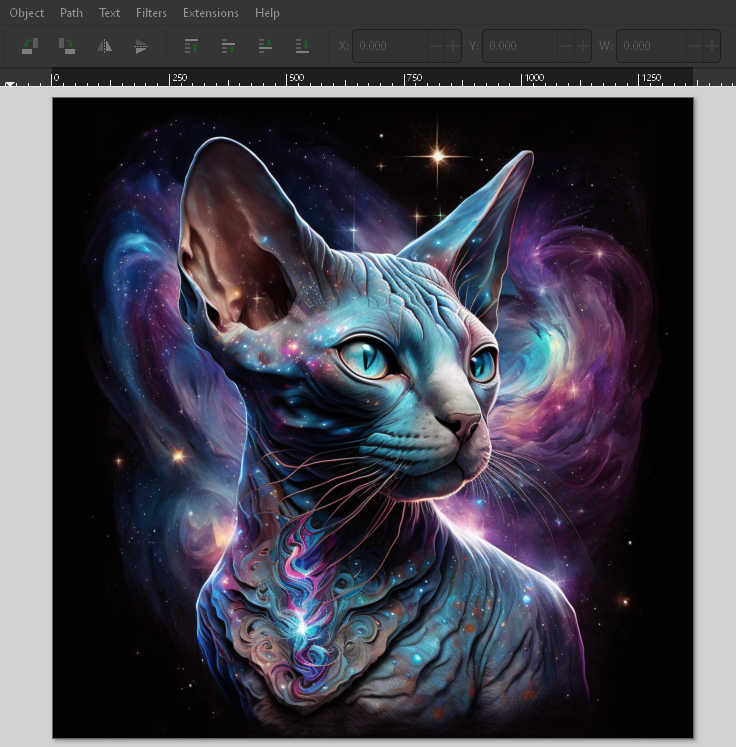
2. Select the image and go to Path>Trace Bitmap.
3. Choose whether you will be doing a black and white line image with Single Scan or color layers with Multicolor .
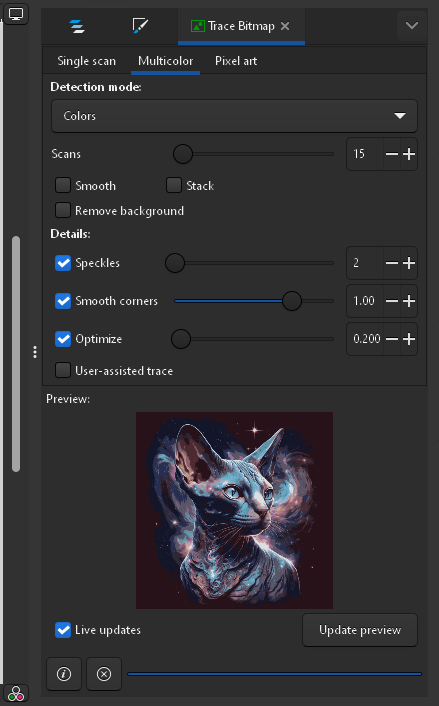
4. Choose how many scans or layers you would want and play with the various levels until you have an image you find acceptable and click Apply.
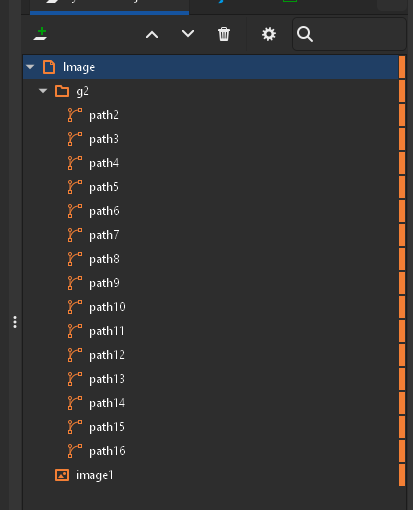
5. You will then see all the layers that were created for the image. You can choose to delete the ones you don’t need.
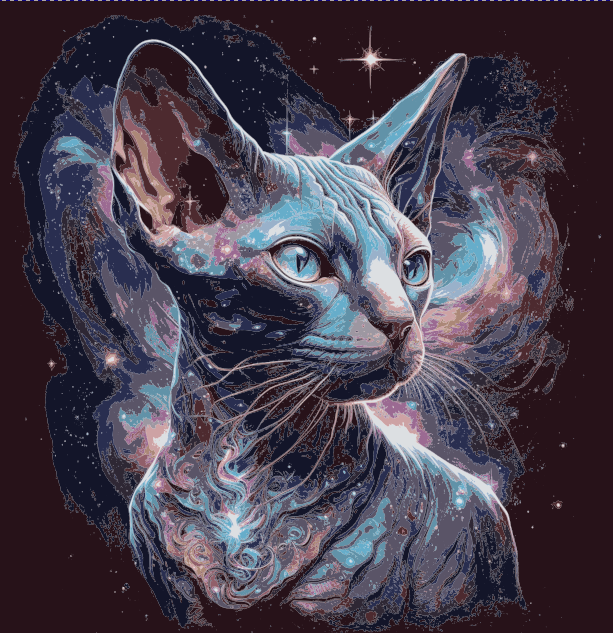
Once you are satisfied you can export as an SVG file and move on to your cutting machine or embroidery software. The simpler the image, the better the results. This is also perfect if you are creating paint by number images!
This is an extremely simple explanation of a process that can be very involved depending on the image and results you are after. And Inkscape has fairly good explanations here on their website as well as links to other resources such as Full Circle Magazine. Youtube is also a great option.
If you have an image you want vectorized and just don’t feel like spending the time doing it yourself, please feel free to contact me through my site contact form as it is a service that I offer.
If you are enjoying my content, don’t forget to sign up for my new Brigantia Arts newsletter where I explore and share my blog as well as freebies for the Art and Crafters.
Leave a Reply